Table Detection
This guide covers how to set up and verify table detection in the RTA software.
Step 1: Enable Detection View
- Open poker tables on your Poker PC (observing tables is enough - no need to play)
- In the RTA software, click Show DL
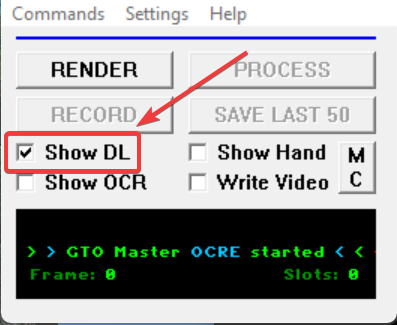
- You should see detection rectangles overlaid on your tables
Expected Result
Stable rectangles appear on each table, showing where the software looks for cards, stacks, and buttons.
Step 2: Check Rectangle Stability
The detection rectangles should be:
- Stable - not blinking or flickering
- Properly positioned - aligned with table elements
- Present on all tables - every open table should have rectangles
If Rectangles Are Blinking
Blinking or flickering rectangles indicate a problem:
- Verify both PCs have 100% scaling
- Check the resolution in OCR software matches your Poker PC
- Check the Image Quality indicator - should be above 98%
If Some Tables Have No Rectangles
- Make sure all tables are exactly the same size
- Check for popups, notifications, or chat windows covering tables
- Verify no table is partially off-screen
Step 3: Table Sizing
Tables must be large enough for accurate OCR. The detected table size should be close to the supported OCR table size.
Recommended Table Counts by Resolution
| Resolution | Recommended Tables |
|---|---|
| 1920x1080 (Full HD) | 2-4 tables |
| 2560x1440 (2K) | 6 MTT or up to 12 cash tables |
| 3840x2160 (4K) | 9-16 tables |
Check Detected Size
When Show DL is active, you can see the detected table size at the top of the window. This size should be close to your actual table size for optimal detection.
Step 4: Table Arrangement
For reliable detection, tables must be arranged correctly:
Do's
- Use your poker client's Tile function to auto-arrange
- Keep all tables the same size
- Keep tables fully within screen bounds
Don'ts
- Don't let tables overlap each other
- Don't have tables extend beyond screen edges
- Don't cover tables with HUD windows or popups
Common Issues
No Rectangles Appearing
- Check that video is working (can you see tables in Render view?)
- Verify table count is within recommended range
- Make sure tables aren't overlapping
Rectangles on Some Tables Only
- All tables must be identical in size
- Check for anything blocking the non-detecting tables
- Verify no table is partially off-screen
Rectangles Blinking/Unstable
- Both PCs must have 100% scaling
- Resolution must match between Poker PC and OCR software
- Check Image Quality is above 98%
Image Quality Check
The software displays an Image Quality percentage. For reliable detection:
| Quality | Status |
|---|---|
| 98-100% | Excellent - detection should work perfectly |
| 95-97% | Good - may have occasional issues |
| Below 95% | Poor - detection will be unreliable |
Low image quality is usually caused by:
- Poor capture card connection
- Incorrect resolution settings
- Signal interference
Next Step
Once detection rectangles are stable on all tables, proceed to OCR Calibration.